How to Create Talking Avatars for Faceless Channels That Subscribers Actually Trust
Build a faceless YouTube channel with AI avatars that subscribers actually trust—it’s the holy grail for content creators who want to scale without showing their face on camera. The challenge isn’t just creating avatar videos anymore; it’s creating presenters that don’t trigger the immediate “this is fake” reaction that kills viewer retention in the first 10 seconds.
The faceless YouTube channel movement has exploded, but there’s a critical problem: most AI avatars look robotic, move unnaturally, and destroy credibility before your first hook is finished. Your subscribers can smell a cheap avatar from a mile away, and YouTube’s algorithm punishes videos with poor watch time. The solution lies in a specific two-tool workflow that combines Google Flow’s text-to-video capabilities with DomoAI’s advanced animation features to create presenters that actually hold attention.
Act 1: Setting Up Google Flow for Text-to-Avatar Video Generation
Google Flow (also called Google Veo in some regions) represents the new frontier of text-to-video AI generation, specifically optimized for creating human-like avatar presenters. Unlike older tools that required extensive 3D modeling knowledge, Flow allows you to generate avatar videos directly from text prompts and voice input.
Initial Setup and Account Configuration
Start by accessing Google Flow through Google Labs (labs.google.com/flow). You’ll need a Google Workspace account or standard Gmail account. The free tier gives you 50 generation credits per month, which translates to approximately 10-15 avatar videos depending on length. For serious YouTube production, the Pro tier ($30/month) provides 500 credits and removes watermarks—essential for professional-looking content.
The dashboard interface focuses on three primary inputs: character description, voice selection, and script text. This simplicity is deceptive; each element requires careful consideration to avoid the “uncanny valley” effect that immediately identifies your presenter as AI-generated.
Character Selection Strategy
The biggest mistake new creators make is choosing overly perfect avatars. Subscribers trust imperfection. When crafting your character prompt in Flow, include specific details that add humanity:
– Age indicators (“early 30s with slight crow’s feet”)
– Asymmetrical features (“slightly crooked smile”)
– Casual styling (“relaxed posture, not corporate stiff”)
– Contextual clothing (“casual blazer over t-shirt” not “business suit”)
Example prompt: “Female presenter, early 30s, approachable expression, slight asymmetry in smile, wearing glasses, casual professional attire, warm lighting, looking slightly off-center from camera.”
The “looking slightly off-center” detail is crucial—direct eye contact in AI avatars often appears intense and unnatural. A 5-10 degree offset creates more natural viewer connection.
Voice Synthesis Configuration
Google Flow’s voice engine offers 40+ voice options, but only 6-7 sound genuinely trustworthy for educational content. Avoid these common traps:
Voices to avoid: Ultra-smooth voices without breath patterns, overly enthusiastic tones, perfectly consistent pace, voices without regional slight accents.
Voices that build trust: Voices with natural pauses, slight tonal variations, subtle breath sounds, conversational pace with rhythm changes.
Test your voice selection by generating a 30-second sample and watching with audio visualization turned on. Trustworthy voices show irregular waveform patterns; robotic voices show mechanical consistency.
Script Formatting for Natural Delivery
Flow’s text-to-speech engine responds to specific formatting that creates natural-sounding delivery:
– Use ellipses (…) for thoughtful pauses
– Add commas liberally for breathing points
– Write in contractions (“you’re” not “you are”)
– Include filler phrases (“you know,” “so basically,” “here’s the thing”)
– Vary sentence length dramatically
Poor script: “Today I will teach you about creating avatars. This process involves several steps. First you need to select your tools.”
Natural script: “So… here’s the thing about creating avatars. There’s a process, right? And it’s actually simpler than you’d think, but—and this is important—you need to start with the right tools.”
The second version generates avatar speech with natural rhythm and emphasis patterns that hold viewer attention.
Act 2: Using DomoAI to Turn Static Images into Talking Presenters
While Google Flow handles full text-to-video generation, DomoAI (domo.ai) specializes in animating existing images into talking presenters with superior lip-sync and micro-expression control. This becomes your secret weapon for B-roll avatars, reaction shots, and multi-presenter formats.
The DomoAI Workflow Integration
DomoAI works differently from Flow—you provide a static image and audio file, and it generates synchronized talking video. This makes it perfect for:
1. Custom avatar designs you’ve created in Midjourney or DALL-E
2. Illustrated characters for niche channels (cartoon explainers, animated hosts)
3. Multiple presenters in conversation format
4. Reaction shots and cutaway presenters
The workflow: Create your avatar image → Export your script audio from ElevenLabs or Flow → Upload both to DomoAI → Configure animation parameters → Generate talking video.
Image Preparation for Optimal Results
DomoAI’s algorithm performs best with images that meet specific criteria:
Resolution: 1024×1024 minimum, 1536×1536 optimal. Lower resolution creates blurry lip movements that break immersion.
Face positioning: Subject should occupy 40-60% of frame height. Too close creates cropping issues; too far makes lip movements hard to see.
Lighting: Even, frontal lighting with minimal shadows on the face. Side lighting creates artifacts in jaw movement animation.
Expression: Neutral or slight smile in source image. Extreme expressions limit the animation range.
Background: Slightly blurred or simple backgrounds. Complex backgrounds can create edge artifacts during animation.
Pro tip: Generate multiple versions of your avatar with slight pose variations (head turned 5° left, 5° right, straight on). This allows you to switch between angles during editing, making the avatar feel less static across a 10-minute video.
Audio Optimization for Lip-Sync Accuracy
DomoAI’s lip-sync quality depends heavily on your audio file characteristics:
– Format: WAV files at 44.1kHz produce better sync than MP3s
– Clarity: High pass filter to remove frequencies below 80Hz
– Dynamics: Light compression (3:1 ratio) to even out volume spikes
– Pace: 140-160 words per minute for optimal visual tracking
The AI struggles with extremely fast speech (180+ WPM) and creates blurred lip movements. If your content requires rapid delivery, break into shorter DomoAI segments rather than one continuous generation.
Advanced Animation Parameters
DomoAI offers four animation intensity settings that dramatically affect perceived authenticity:
Low Intensity (20-40%): Minimal movement, mostly lip-sync. Best for serious, authoritative content like financial advice or medical information. Creates “trustworthy expert” vibe.
Medium Intensity (40-60%): Natural head movements, eye blinks, subtle expressions. Optimal for educational content, tutorials, and general YouTube topics. This is your default setting.
High Intensity (60-80%): Noticeable head movements, hand gestures appearing at frame edges, emotional expressions. Best for entertainment content, reactions, and enthusiastic presentation styles.
Maximum Intensity (80-100%): Dramatic movements that can cross into unrealistic territory. Reserve for deliberately stylized content or cartoon avatars where realism isn’t the goal.
For faceless channels building trust, Medium Intensity with occasional High Intensity segments during emphasis points creates the most believable presentation.
The Multi-Pass Generation Technique
Here’s a technique that separates professional avatar content from amateur: don’t generate your entire video in one pass. Instead:
1. Break your script into 20-30 second segments
2. Generate each segment separately in DomoAI
3. Alternate between slight avatar variations (different angles of same character)
4. Edit segments together with cutaways to B-roll every 8-12 seconds
This approach prevents the “uncanny valley fatigue” where viewers become increasingly aware they’re watching AI after 45+ seconds of continuous avatar footage.
Act 3: Best Practices for Natural-Looking Lip-Sync and Hand Gestures
Technical setup only gets you halfway to subscriber trust. The finishing touches separate avatars that build audiences from ones that repel viewers.
Micro-Expression Timing
Human presenters unconsciously sync facial expressions with speech emphasis. AI avatars often miss this timing, creating disconnected performances. Fix this in post-production:
Expression before emphasis: Humans begin expression changes 0.2-0.3 seconds BEFORE the emphasized word. If your avatar says “This is CRUCIAL,” the expression shift should begin just before “crucial,” not during it.
Use frame-by-frame editing to verify this timing. When the timing feels slightly early, it reads as natural. When it’s perfectly synchronized or late, it reads as artificial.
The Hand Gesture Problem
Neither Flow nor DomoAI generates realistic hand gestures consistently—this is the biggest remaining tell for AI avatars. Strategic solutions:
Frame cropping: Keep avatars in mid-chest-up framing where missing hand gestures feel natural rather than conspicuous.
Strategic cuts: Cut away from avatar to B-roll every time a hand gesture would naturally occur in human speech (approximately every 15-20 seconds).
Stock gesture overlay: Advanced technique—source generic hand gesture footage from stock libraries and composite at frame edges, synced to your avatar’s speech rhythm.
Embrace it: For some channel styles, static hand positioning becomes part of your brand identity rather than a flaw.
Breathing and Natural Pauses
Robotic avatars maintain perfectly still torsos. Humans have subtle breathing movements even when speaking. Add this in post:
1. Apply very subtle scale animation (100% to 100.5%) on a 4-second cycle
2. Anchor point at avatar’s chest/shoulder area
3. Use easing curves that mimic breathing rhythm (slower expansion, quicker contraction)
This 0.5% movement is barely perceptible consciously but dramatically improves subconscious authenticity perception.
Eye Contact Patterns
Static eye contact breaks trust after 8-12 seconds. Humans naturally shift gaze patterns. Solutions:
Slight position shifts: Generate three versions of your avatar with camera angles varying by 10° horizontally. Cut between them every 10-15 seconds.
Look-away moments: When referencing concepts (“as we saw earlier” or “coming up next”), avatars should break eye contact briefly. Edit in very slight position shifts using keyframe animation during these moments.
Blink rate: Humans blink every 3-4 seconds during speech. Count your avatar’s blinks. If they’re too regular or too infrequent, use transition cuts to mask the pattern.
Background and Context Integration
Floating avatar heads on solid backgrounds scream “AI generated.” Integration techniques:
Virtual environments: Use Runway or similar tools to generate consistent background environments (bookshelf, office, studio) then composite your avatar into them.
Depth of field: Add subtle blur to backgrounds using After Effects or DaVinci Resolve. The bokeh effect makes avatars feel photographed rather than composited.
Consistent lighting: If your avatar has frontal lighting, ensure your background suggests the same light source direction.
Parallax movement: Add very subtle left-right movement to backgrounds (2-3% over 5 seconds) while keeping avatars stable. Creates illusion of slight camera movement.
The Audio-Visual Sync Check
Before publishing, perform this three-part verification:
1. Mute test: Watch your avatar video muted. Do movements and expressions alone convey emotional content? If the avatar looks blank when silent, viewers will subconsciously distrust it with audio.
2. Audio-only test: Listen without watching. Does the voice sound like it’s coming from a real person in a real space? Add subtle room reverb (20% wet, 0.3s decay) to voices that sound too “clean.”
3. Speed check: Watch at 1.5x speed. Unnatural movements become obvious at higher speeds. If it looks wrong at 1.5x, it feels subtly wrong at 1x.
Building Brand Consistency
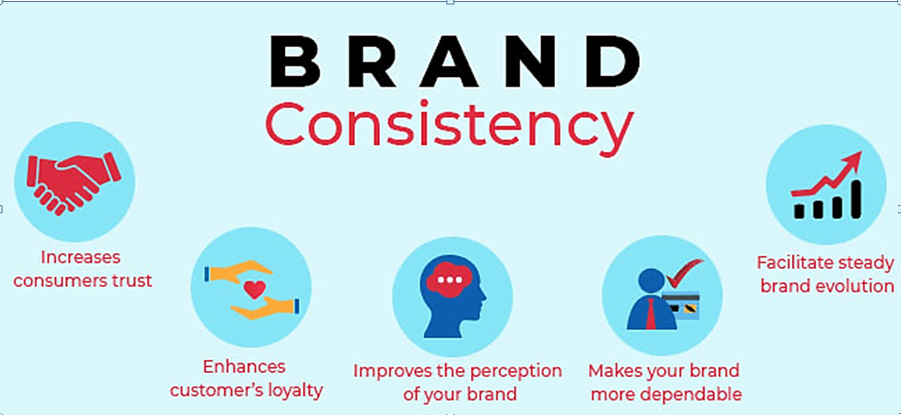
Once you’ve created an avatar that works, consistency becomes your trust-building superweapon:
– Save exact prompts and settings for character regeneration
– Use the same voice across all videos (switching voices destroys channel identity)
– Maintain consistent framing, lighting style, and background context
– Create an avatar “style guide” document with technical specifications
Subscribers form parasocial relationships with consistent presenters, even artificial ones. Changing avatar appearance or voice between videos resets trust to zero.
The Hybrid Approach
The most successful faceless channels often aren’t 100% avatar. Consider this structure:
– Avatar presenter for intros and main content delivery (70% of screen time)
– B-roll, screen recordings, and graphics (25% of screen time)
– Text overlays and animations (5% of screen time)
This ratio prevents avatar fatigue while maintaining the faceless channel format. Viewers accept avatar limitations more readily when they’re not the only visual element for 10 straight minutes.
Final Implementation Workflow
Here’s your complete production workflow combining both tools:
Pre-production:
1. Write script with natural speech patterns
2. Design avatar character (decide on consistent appearance)
3. Select voice in Google Flow that matches avatar personality
Production:
4. Generate avatar test footage in Flow (30 seconds to verify quality)
5. OR prepare static images and audio for DomoAI workflow
6. Generate full segments in 20-30 second blocks
7. Create or source B-roll content
Post-production:
8. Edit avatar segments with cutaways every 8-12 seconds
9. Add subtle breathing animation to avatar footage
10. Apply consistent color grading across all segments
11. Add environment integration (backgrounds, lighting adjustments)
12. Verify audio-visual sync and natural timing
13. Perform mute/audio-only/speed tests
Publishing:
14. Export in YouTube-optimized settings (1080p60, high bitrate)
15. Monitor first hour’s audience retention graphs
16. Note exactly which segments caused drop-offs for future improvement
Your first few videos will feel experimental—that’s expected. By video 5-6, you’ll have refined your avatar’s appearance, voice, and animation parameters into a consistent presenter that your audience recognizes and trusts.
The faceless YouTube channel opportunity is real, but the barrier to entry isn’t technical anymore—it’s execution quality. Google Flow and DomoAI provide professional-grade tools; the difference between channels that succeed and ones that fail comes down to the details covered here. Subscribers don’t trust avatars—they trust presenters who feel authentic, regardless of whether they’re human or AI.
Frequently Asked Questions
Q: Which is better for faceless YouTube channels: Google Flow or DomoAI?
A: Google Flow is better for complete text-to-video generation when you need a quick all-in-one solution, while DomoAI excels at animating custom avatar designs with superior lip-sync quality. Most professional creators use both: Flow for rapid content production and DomoAI for custom characters or multi-presenter formats. If you’re just starting, begin with Flow’s simpler workflow, then add DomoAI as you scale.
Q: How can I make my AI avatar look less robotic and more trustworthy?
A: Focus on imperfection: use avatars with asymmetrical features, avoid perfectly direct eye contact by angling your avatar 5-10° off-center, add natural speech patterns with filler words and varied pacing, and never show continuous avatar footage for more than 12 seconds without cutting to B-roll. The ‘medium intensity’ animation setting combined with subtle breathing animation (0.5% scale changes) dramatically improves perceived authenticity.
Q: What’s the ideal video structure to prevent avatar fatigue in viewers?
A: Use a 70/25/5 ratio: 70% avatar presenter footage, 25% B-roll and screen recordings, and 5% text overlays. Break avatar segments into 20-30 second chunks and cut away every 8-12 seconds. This prevents the ‘uncanny valley fatigue’ where viewers become increasingly aware they’re watching AI. Never show the same continuous avatar shot for longer than 45 seconds.
Q: Do I need expensive subscriptions to both tools for a faceless YouTube channel?
A: Start with free tiers: Google Flow offers 50 credits/month (10-15 videos) and DomoAI provides limited free generations. This is sufficient for testing your niche and avatar style. Upgrade to paid plans ($30/month for Flow Pro, $20/month for DomoAI Standard) only after your channel reaches 1,000 subscribers or you’re publishing 2+ videos weekly. The paid tiers primarily remove watermarks and increase generation limits.
Q: How do I fix lip-sync issues that make my avatar look fake?
A: Use WAV audio files at 44.1kHz instead of MP3s, keep speech pace at 140-160 words per minute, and apply light audio compression (3:1 ratio) before uploading to DomoAI. In Google Flow, add more commas and ellipses to your script to create natural pauses. If lip-sync still looks off, use strategic cuts to B-roll during complex words or very fast speech sections—viewers won’t notice the transition but will subconsciously perceive better quality.